Unsure what web browser you're using? Click "Help" on the top menubar and choose the "About..." option.
Follow the instructions below for your web browser. There are specific instructions for Microsoft Internet Explorer and Mozilla Firefox. If you are using a different browser the process should be similar but check your browser documentation for details.
Note several companies offer third-party browser add-ons which also block pop-up windows. Common examples are the
Google toolbar,
Yahoo toolbar
and
McAfee security suite.
If you have one of these products, or something similar installed, you
will also need to find how to enable EQA pop-ups with it.
Microsoft Internet Explorer versions 6 and 7
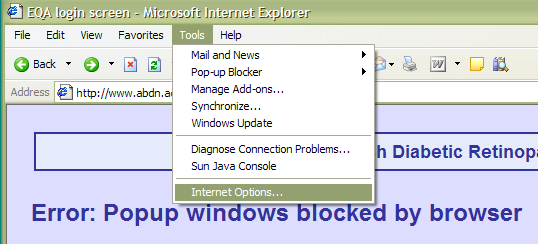
1. Select "Internet Options..." from the Tools menu.
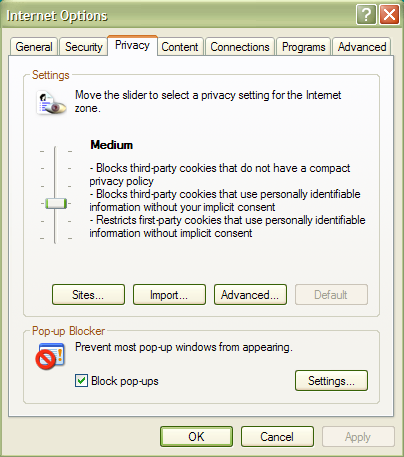
2. Click on the "Privacy" tab at the top of the Internet Options
window, and then click the "Settings..." button in the Pop-up Blocker
section at the bottom.
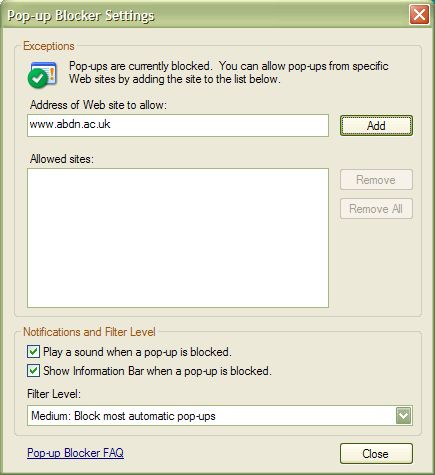
3. In the Pop-up Blocker Settings window enter "www.eqa.co.za" (as
shown in the image below) in the box labelled "Address of Web site to
allow:" and then click the "Add" button to the right. www.eqa.co.za
should appear in the list of allowed sites. Click "Close" at the
bottom to complete the set up.
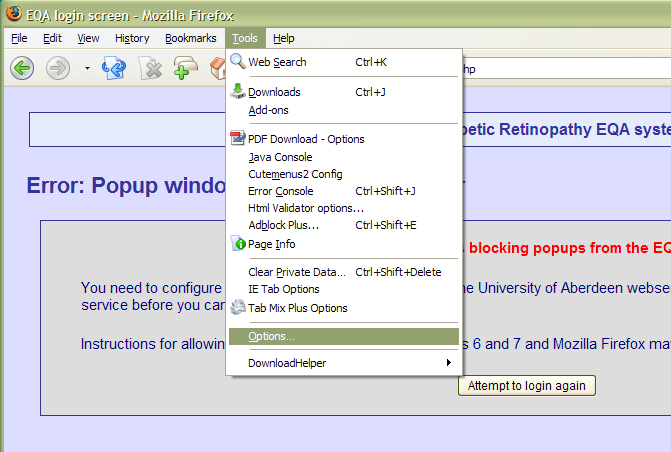
1. Select "Options..." from the Tools menu.
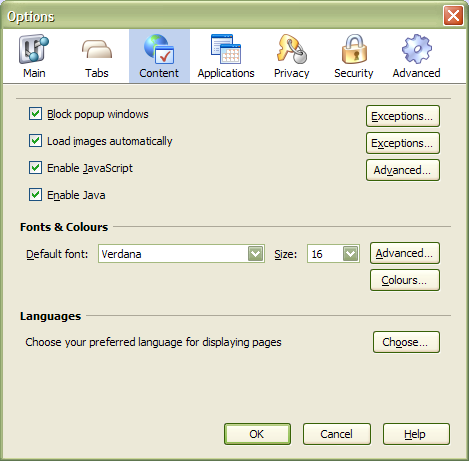
2. Click on the "Content" tab at the top of the Options
window, and then click the "Exceptions..." button to the right of the
"Block popup windows" tick box.
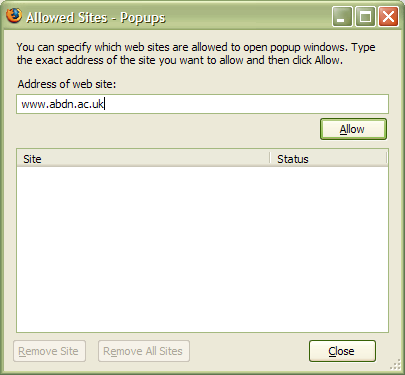
3. In the Pop-up Allowed Sites window enter "www.eqa.co.za" (as shown
in the image below) in the box labelled "Address of Web site" and then
click the "Allow" button below to the right. www.eqa.co.za should appear in
the list of allowed sites below. Click "Close" at the bottom to complete the
set up.